
AWS S3 Protocol - Packet Capture
In 2006, Amazon launched the object storage service Amazon Simple Storage Service, abbreviated as Amazon S3. After years of development, the S3 protocol has become the de facto standard for object storage, and subsequent object storage services have varying degrees of compatibility with the S3 API. The widespread compatibility allows for the rich community software of Amazon S3, such as client tools, cloud storage tools, SDKs, etc., to be directly used across different data storage services. Therefore, learning the S3 protocol is essential for understanding object storage services. This article will introduce how to intuitively learn the S3 protocol through packet capturing.
S3 Protocol
Required Software
- Minio: Minio is an open-source object storage service that is compatible with the Amazon S3 protocol.
- Fiddler4: An HTTP packet capture tool that can intercept, resend, edit, and store data packets.
- S3 Browser: A commonly used Amazon S3 client.
Operations
Run Minio
Obtain the executable file for your platform from Minio's GitHub homepage and run it locally. For example, for Windows, download minio.exe and execute the command minio.exe server D:\Photos. D:\Photos is the directory where Minio will store objects (files). Of course, this usage is only for local testing. After execution, the console will display the following information:
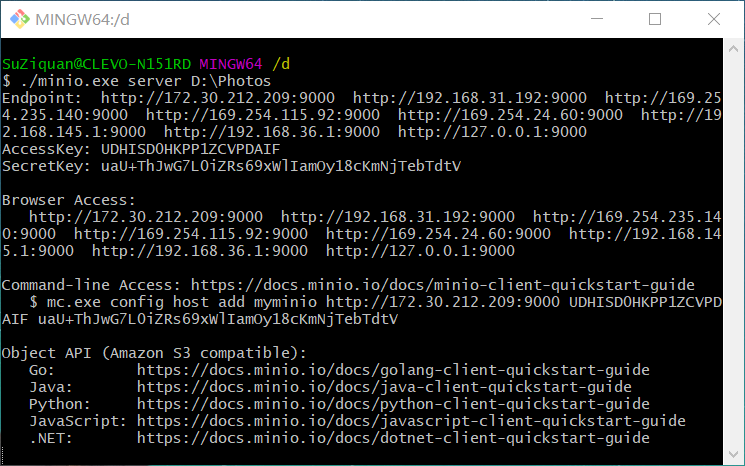
Open your browser and enter 127.0.0.1:9000. On the login page, enter the AccessKey and SecretKey printed in the console to access Minio's management page, where you can manage buckets and objects. You can directly see the stored files in D:\Photos.
Set Proxy for S3 Browser
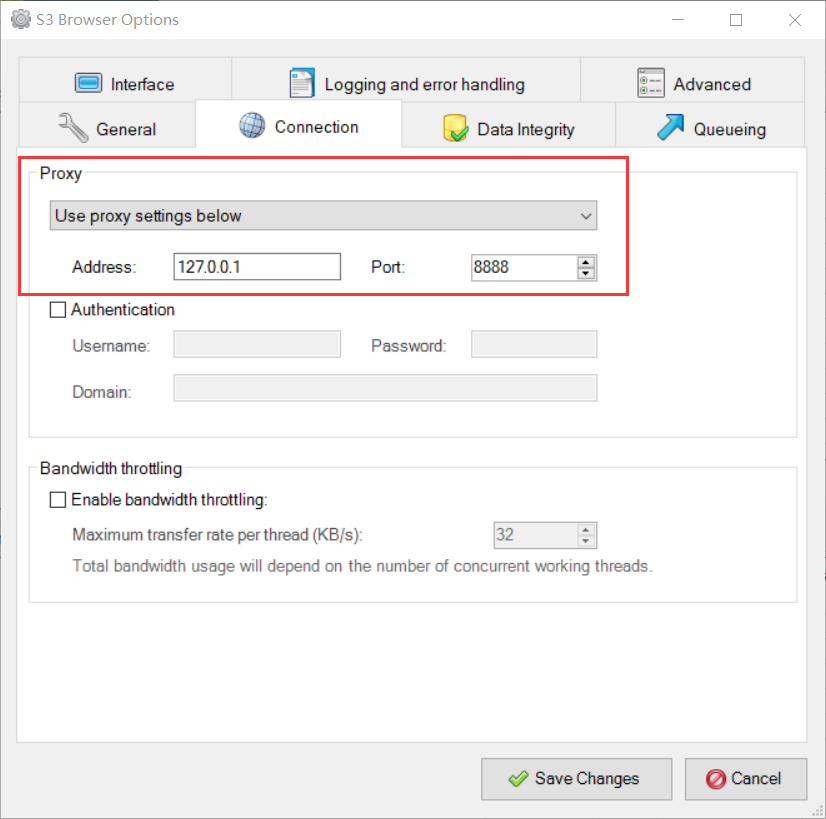
Open S3 Browser, click on "Tools" -> "Options" in the menu bar, switch to the "Connection" tab, and set the proxy as shown in the image below. (8888 is the default proxy port for Fiddler4). This way, the HTTP requests sent and received by S3 Browser will go through Fiddler4.
Set Filters for Fiddler4
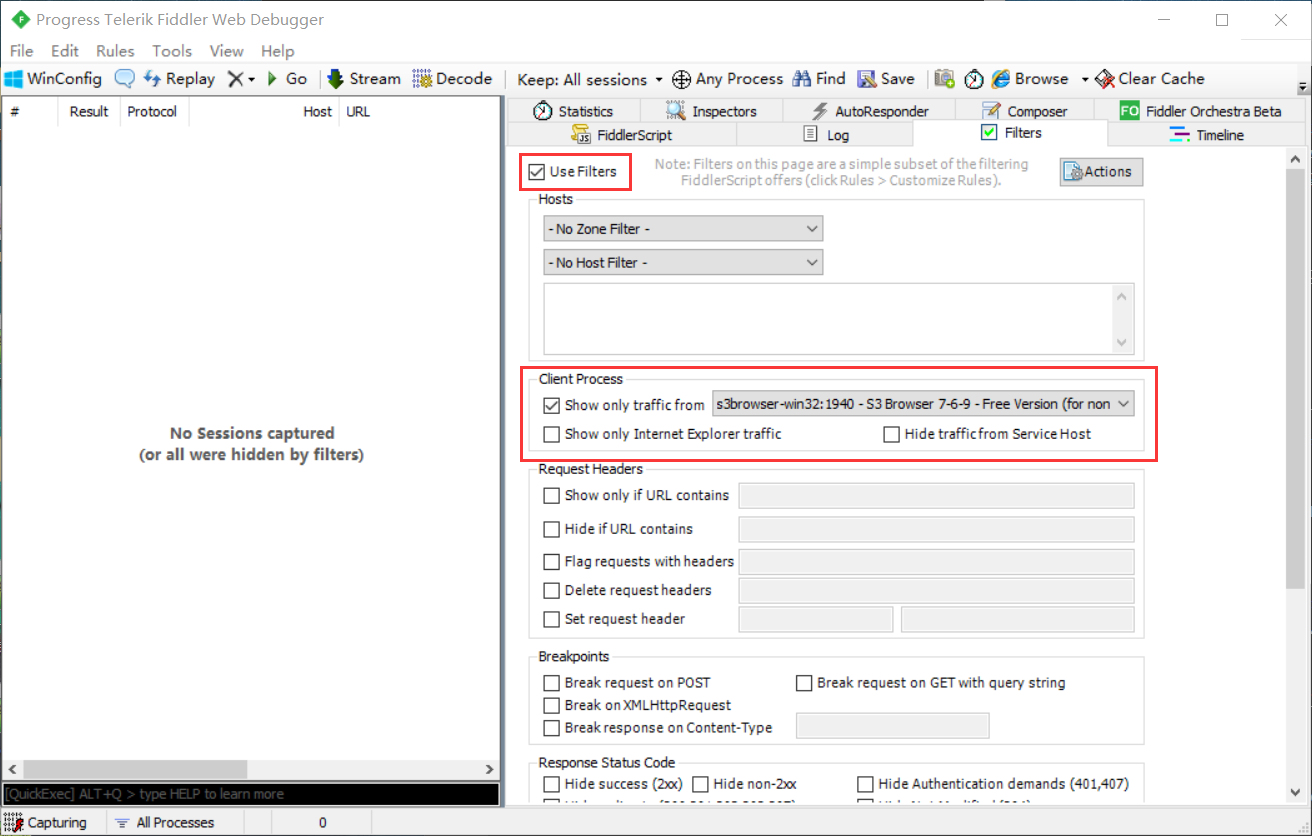
Open Fiddler4, switch to the Filter tab on the right, check "Use Filters," and check "Show only traffic from," selecting S3 Browser from the dropdown. This is to filter out HTTP requests generated by other software. (Note: After restarting S3 Browser, you need to reselect the filtered application)
Modify HOSTS
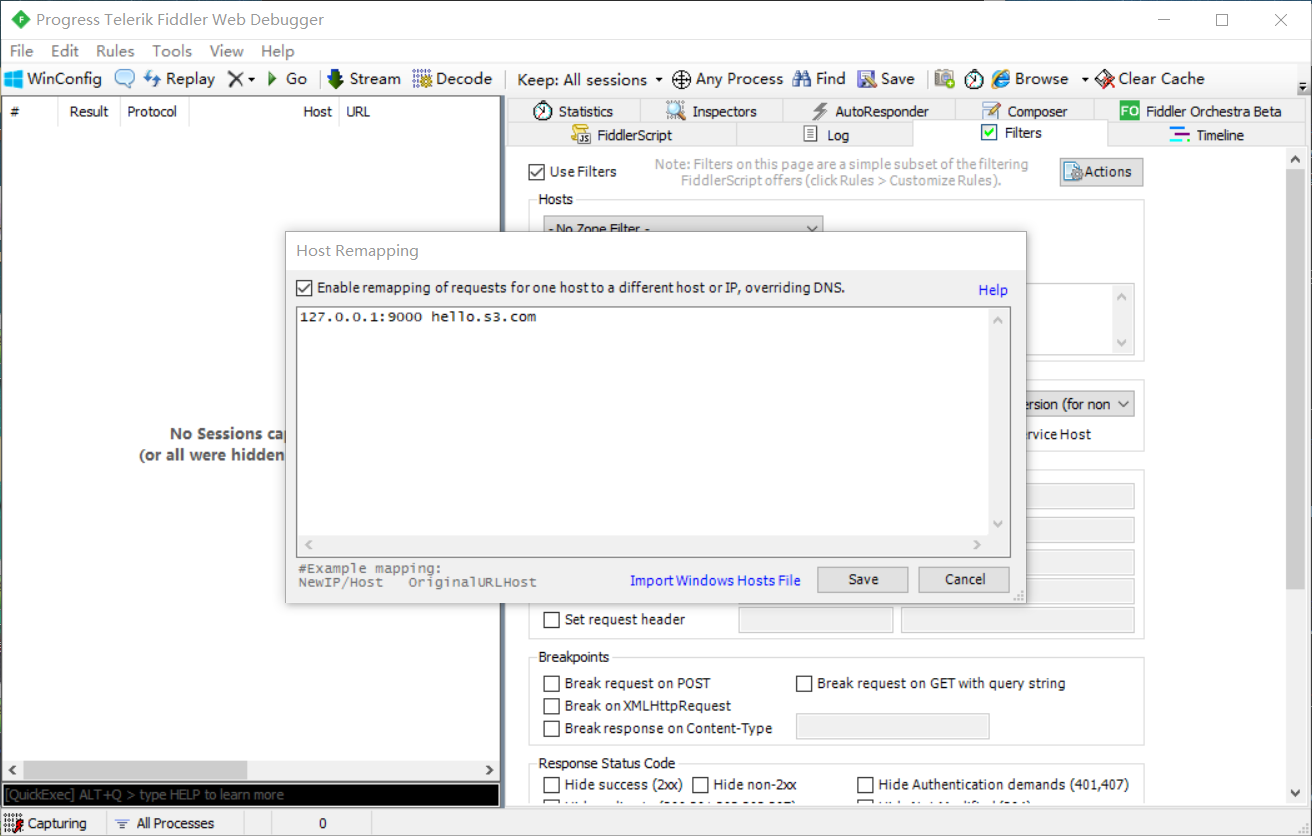
Click on "Tools" -> "HOSTS..." in the Fiddler4 menu bar, and add a mapping as shown in the image below, forwarding requests sent to "hello.s3.com" to the local 127.0.0.1:9000, which means sending them to the locally running Minio.
Connect Minio Using S3 Browser
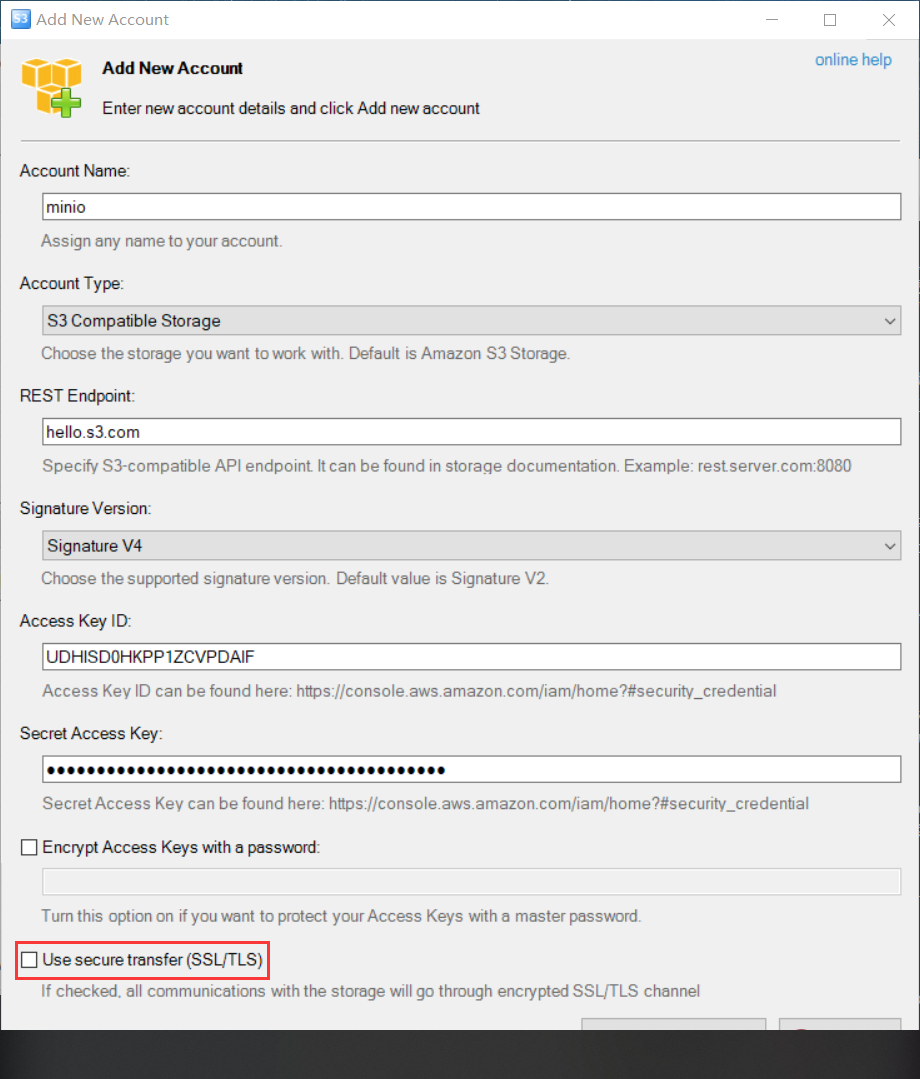
Click on "Accounts" -> "Add new account.." in the S3 Browser menu bar, and enter the connection information for Minio.
Test Packet Capture
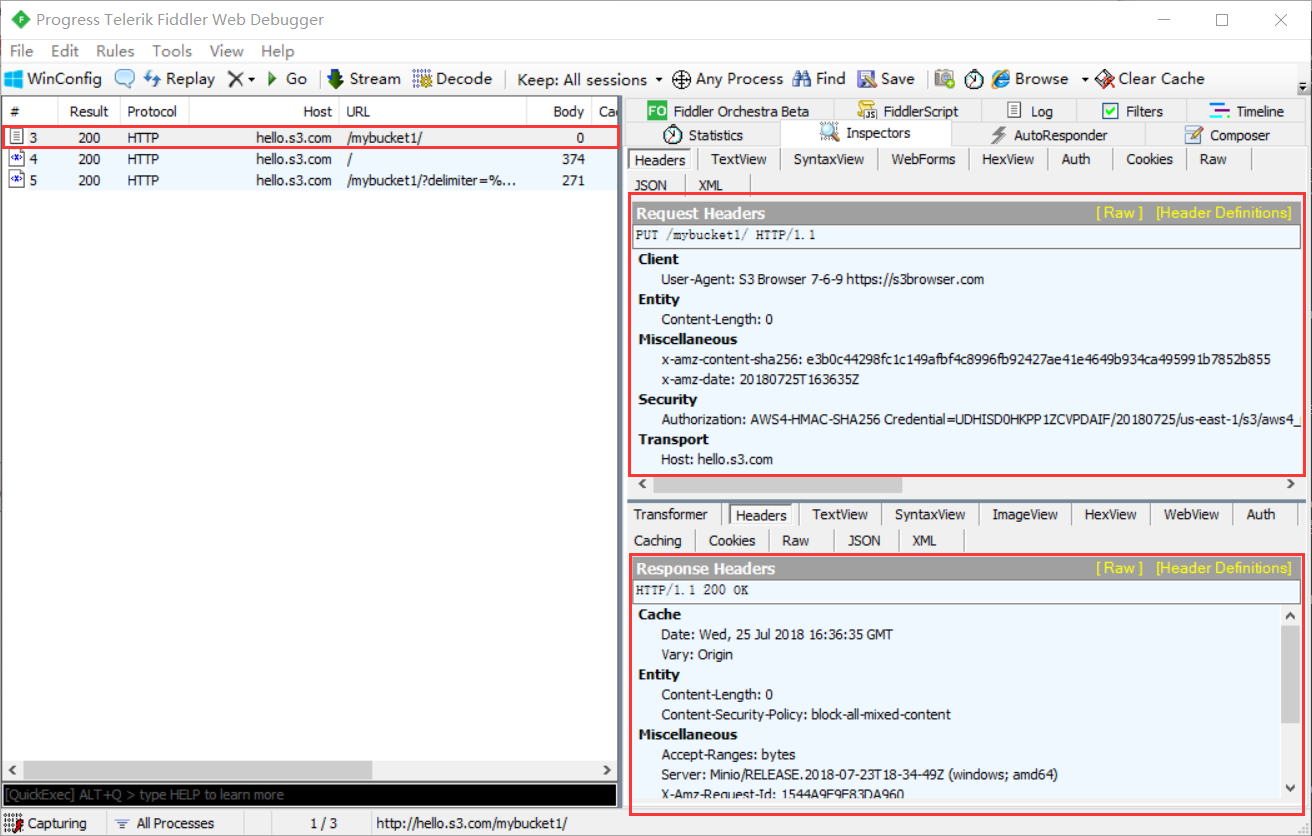
Create a new bucket named "mybucket1" using S3 Browser, and you will see the HTTP requests sent by S3 Browser in Fiddler.
Edit and Resend
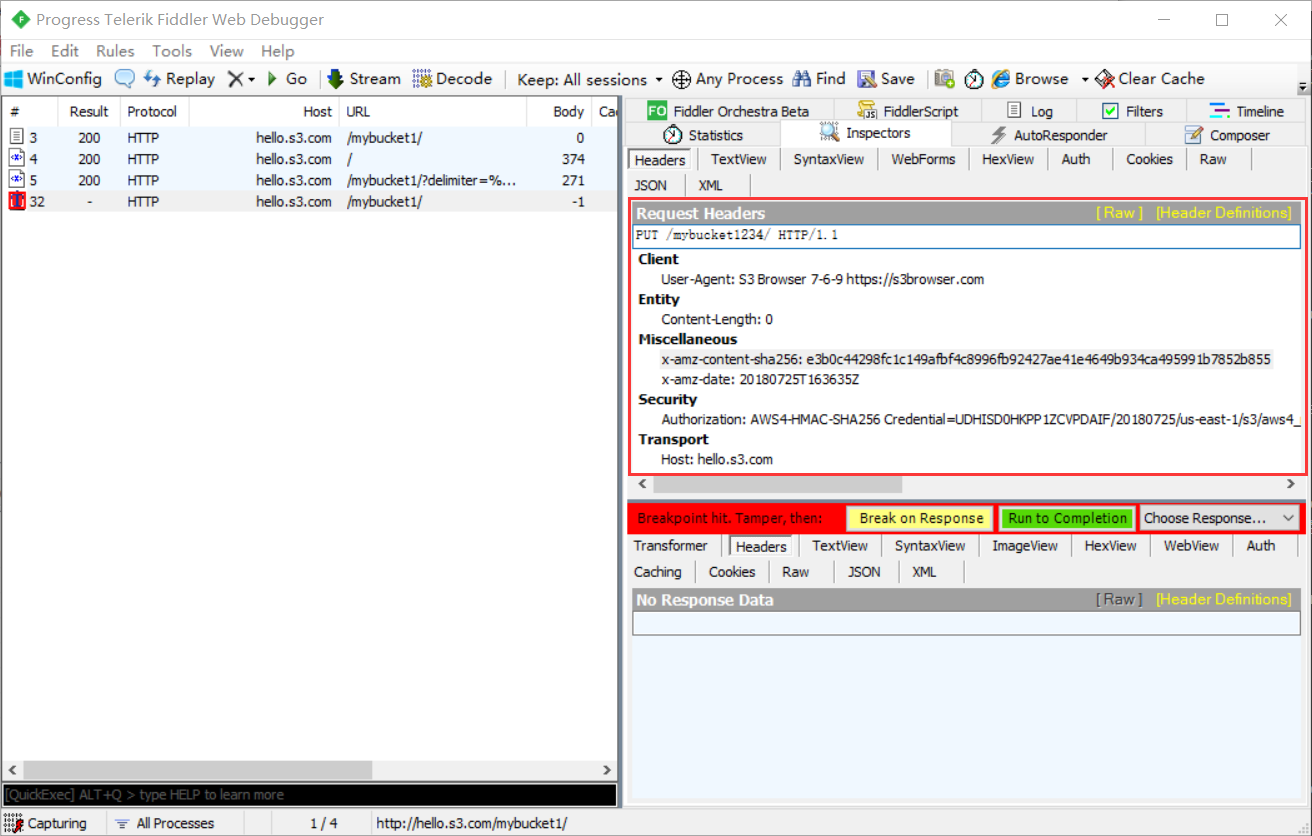
Select a request in Fiddler4, right-click, and choose "Replay" -> "Reissue and Edit." You can modify the request information on the right side, and after making changes, click "Run to Completion" to see a new request.
Summary
This article introduced how to learn the S3 protocol through packet capture. In the future, we will write a simple object storage service based on the S3 protocol, and the tools used in this article will be helpful for the development and testing of the project.
Comments
No comments yet. Be the first to comment!